Setup Barcode Printer

Palace Stock Tracker can print item labels with machine readable barcodes for fast and convenient lookup. Repeat scanning is supported for adding items to the shopping cart for selling or batch disposal etc.

A range of barcode hardware is available here.


Setting up a Printer

  • Open the Client Options (how to open the Client Options).
  • Select the Printing tab.
  • Use the Change button by the Default Barcode Printer box to set which printer to use for barcodes.

Printing Labels

Item labels with barcodes can be printed when viewing items or adding each item to the system. Simply view an item's details and press Print Item Label.


Example barcode label

Scanning Items

Supported scanners require no special configuration or drivers and simply work like a keyboard. Therefore any box that accepts an item number can automatically be filled by scanning a label.


Creating Custom Label Designs and Sizes

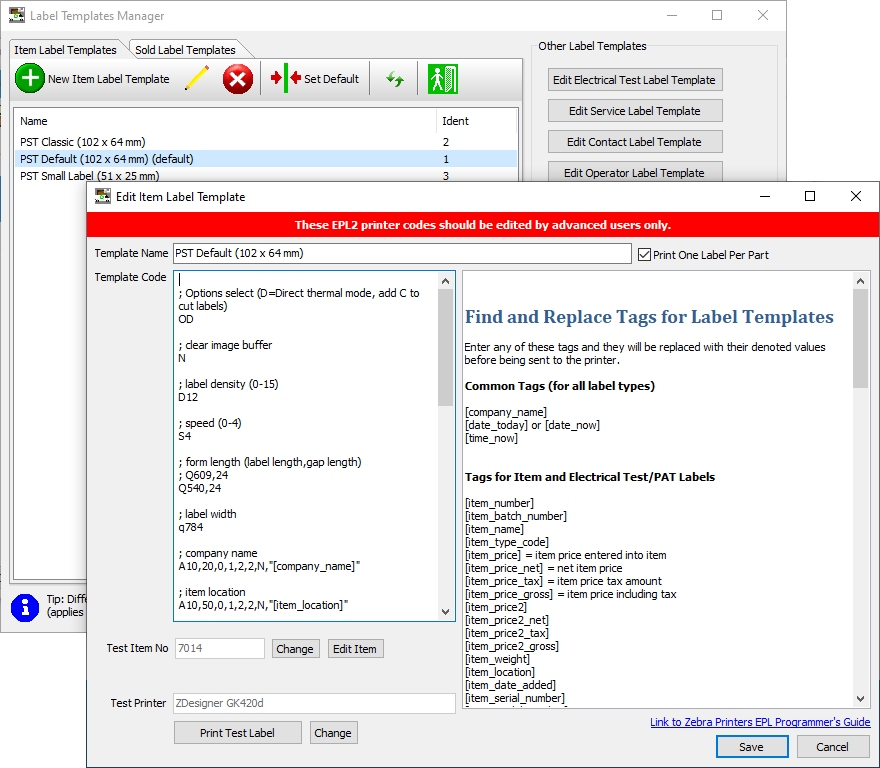
Stock Tracker supports virtually any size of label provided that the printer supports Eltron Printer Language 2 (EPL2).

Label templates for item, electrical test, service, contact, operator login and sold labels can be programmed in EPL2 within Stock Tracker's Administration area.


EPL label editor

See also:


 Contents
 Top